Getting started
Regiment Registration & Discord Bot Setup
Section titled “Regiment Registration & Discord Bot Setup”Welcome to RegPoints! This guide will walk you through registering your regiment and setting up the Discord bot integration step by step.
As an example, pictures will represent a fictional regiment being built.
WIP - Work In Progress, a construction themed regiscout.
Step 1: Getting an Invitation
Section titled “Step 1: Getting an Invitation”To register your regiment, you’ll first need to receive an invitation from Ponytown Regiment Services (PRS) staff.
Note: You do not need an actual invitation to create an account on this site, but it will be required to register your regiment.
1.1: How to Request an Invitation
Section titled “1.1: How to Request an Invitation”- Join the PRS Discord server.
- Open a Support Ticket.
- Provide information about your regiment. (Regi name, theme, etc…)
- Wait for approval and receive your Regpoints Starter Kit.
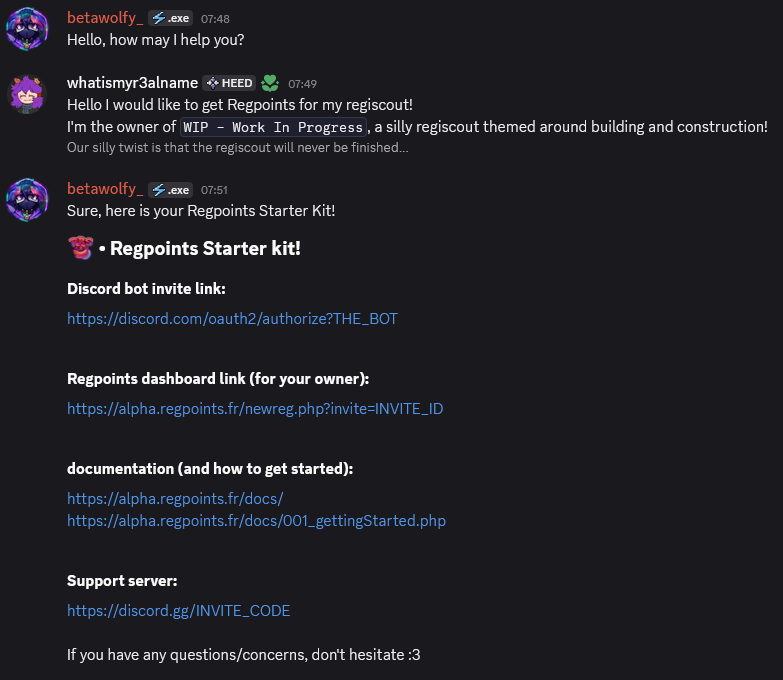
The Owner of
WIPis asking for an inviting link!
Step 2: Creating Your Account
Section titled “Step 2: Creating Your Account”Once you have your invitation link, you can create your RegPoints account.
Create an account:
-
Open your invitation link or create a new account.
-
Fill out the registration form with:
- Email address
- Strong password
- Name or username
- Submit the form and check your email.
- Click the verification link to activate your account.
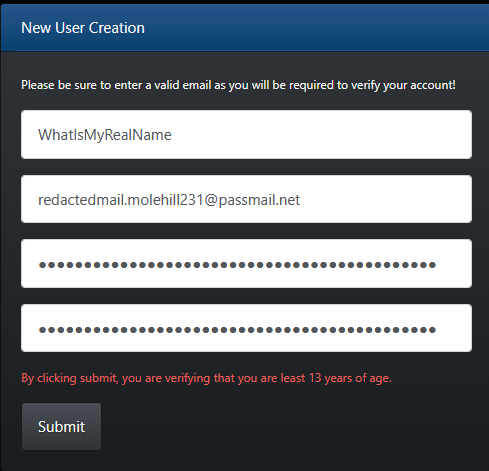
WhatIsMyRealName is using a very strong password. You better do it too, and not only on Regpoints!
Step 3: Registering Your Regiment
Section titled “Step 3: Registering Your Regiment”After creating your account and verifying your email, you can register your regiment.
For this, you will use the invite link provided in the Regpoints dashboard link (for your owner): part of your regpoints starter kit.
Regiment Information Required:
- Regiment Name: Full name of your regiment;
- Short Description: Brief overview (1-2 sentences, including your theme for example)
- Leader Name: Primary leader/commander name
- Prefix: Short abbreviation (for example “WIP”,“PRS”, “AVU”)
- Long Description: Detailed information about your regiment
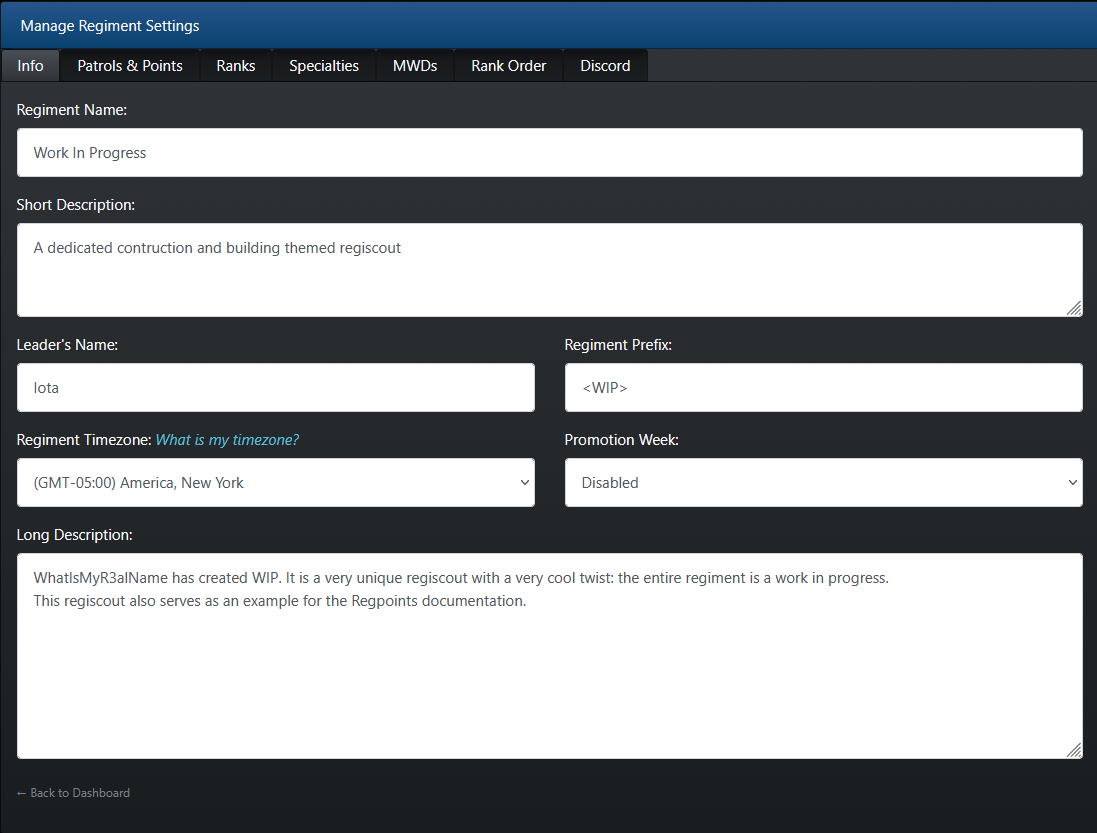
WhatIsMyRealName entering all info about WIP.
Step 4: Setting Up the Discord Bot
Section titled “Step 4: Setting Up the Discord Bot”Now comes the exciting part — linking your regiment with the Discord bot for seamless integration!
4.1: Inviting the Bot to Your Server
Section titled “4.1: Inviting the Bot to Your Server”- Log into your RegPoints dashboard
- Go to Manage Regiment → Discord Tab
- Click the
Click to invite Botbutton - You’ll be redirected to Discord’s authorization page
- Select your server from the dropdown
- Review the requested permissions
(note: Administration perms aren’t necessary. Feel free to remove them if you feel uncomfortable with the bot having them) - Click Authorize.

Omg, why is this French…
4.2: Linking Your Regiment
Section titled “4.2: Linking Your Regiment”- In the Discord tab of Manage Regiment, find the “Command to link regiment with server” section
- Copy the command that looks like:
/reglink [unique_code] - Go to your Discord server
- In any channel where the bot can read messages, paste and send the command
- The bot will confirm the successful link
If the bot linking is successful, the dashboard will indicate ”
Discord server has already been linked.” and the bot will send ”Server successfully linked to [Regiment Name]!”.
Common issues
Section titled “Common issues”Bot doesn’t respond: ⇾ You should check if the bot has the correct permissions. If you are sure you may also check if the bot is online!
Invalid code ⇾ Maybe you didn’t copy the right code. Make sure you have copied the entire code on the dashboard.
Already linked ⇾ Your regiment dashboard may be already linked to another discord server.
Step 5: Testing Your Setup
Section titled “Step 5: Testing Your Setup”Let’s make sure everything is working correctly!
One quick way to see if the bot is linked is to run the /reginfo command.
If the bot is correctly linked, the bot will display a message such as this one!
Step 6: Configuring Bot Permissions
Section titled “Step 6: Configuring Bot Permissions”After linking, you’ll want to set up admin roles, so your staff can use administrative bot commands.
Setting Up Admin Roles
Section titled “Setting Up Admin Roles”Use these commands in your Discord server. Replace our examples with your own roles.
/admin add @Staff- Adds the @Staff role to admin list/admin add @Officers- Adds the @Officers role to admin list/reginfo- Shows current server configuration and admin roles